Please make sure to update your MU1 to the latest firmware.
#1. MU1 stuck during update.
In case your MU1 display blanks, freezes or shows a white screen for more than 30 minutes during the update process, please remain patient. The software is built in such a way that if the process did not finish correctly, it will restart the update procedure repeatedly. If the unit remains inactive for hours, please contact support and we will investigate the problem.
#2. MU1 internal drive not visible under Windows 10.
In some cases the MU1 internal SSD drive is not visible under Windows 10. The reason is that the ‘Bonjour’ service is not installed by default under Windows. Bonjour is used for so called zero-configuration networking, and it enables automatic discovery of devices such as the MU1. It will then show up in the Network File Explorer section of Windows 10 as a named network entity like ‘MU1-00xxxx’.
Solution: First you need to install the ‘Bonjour Print Services’. A download can be found by following this link from Apple.
#3. Track information not on display / Control of the MU1/MU2 does not work as intended / Extension not available
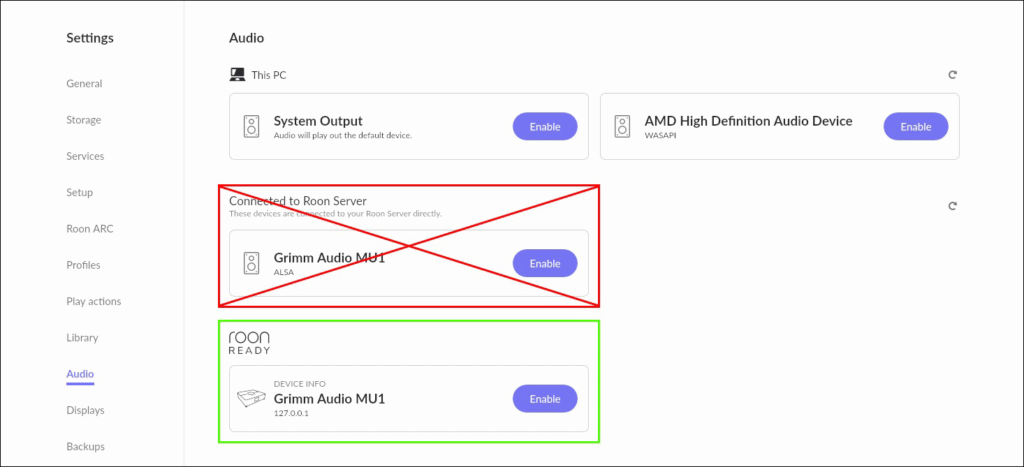
Since update V2.0.0 of the MU1 the software includes an official Roon Ready endpoint alongside the Roon Server. This allows for better integration between the MU1 and Roon but also requires to select the right output device in the Roon audio settings. In Roon, go to Settings -> Audio and in the “Roon Ready” category select the “Grimm Audio MU1” device which has IP address 127.0.0.1. Disable the old output device which was connected directly to the Roon Server. The image on the right shows the device you should select.
Note: if you run the Roon Server on a separate device the MU1 output will have a different IP adres which depends on your local network.
The track information on the display is not communicated through the Roon Extension any more and is now deprecated. Control of the unit via the GRUI or the IR remote is also working through the endpoint and works once the Roon Ready Endpoint has been selected.
#4. Can’t find the internal music disk of the MU1 since update V2.0.0
Since update V2.0.0 of the MU1 the name of the network share has changed from “music” to “mu1-disk””. If you have saved a shortcut to the internal disk this link will no longer work. Adding the internal disk is described in the MU1 software manual, in the chapter “Internal storage”. Also, since update V2.0.4 a login is required to mount the internal music disk, because of increased security demands from Windows and Mac. A short description can be found below.
In the mu1-disk there is a Music folder, audio files in this folder will automatically be added to the Roon storage as “Music Folder”.
On Windows:
1. Open the File Explorer (this is done by opening a random folder).
2. Enter two backslashes followed by the hostname of the MU1 in the address bar. For example “\\mu1-001001” when the hostname of your MU1 is mu1-001001.
3. Select the mu1-disk.
4. Log in using username: mu1-user and password: mu1-pass.
And on MacOS:
1. Open the Finder.
2. Select the MU1 which shows as mu1-00xxxx*.
3. In the popup, click “Connect as…” and “Connect” in the next popup.
4. Use the following credentials to connect; username mu1-user and password mu1-pass.
After connecting the MU1 should show up in the “Shared” category in the Finder.
* If the MU1 is not available in the Shared category, please check out the MU1 manual for an alternative way to mount the internal disk.
#5. MU1 internal drive not visible for external Linux Roon Servers since update v2.0.4.
To satisfy Windows security demands, we had to turn on SMB encryption in MU1 firmware v2.0.4 so you can copy your music to the internal music drive from a Windows computer. Unfortunately Roon Server on an external Linux computer does not support it so it cannot access the MU1 internal drive as a network share. When running the Roon Server on an external Linux computer we recommend mounting the music disk manually from the command line. Mounting the music disk from one MUx in another MUx is not possible. The problem does not exist when running an external Roon Server on a Windows or Mac computer, or when using the built-in Roon Server of the MU1.
#6. Volume control fixed in Roon while the audio device setting is “Device volume”.
Since MU1 update V2.0.0, when the Roon Ready endpoint was implemented, Roon follows the MU1 settings for volume control. If volume control is disabled in the GRUI (the web interface of the MU1), the volume control will be disabled in Roon. To allow volume control from Roon, enable volume control for one or more digital outputs in the GRUI.
#7. The MU1 web interface worked before, but now Safari only shows “Connecting”.
This is a known issue caused by behavior in recent versions of Apple Safari on iOS, iPadOS and MacOS. Safari currently has a problem with websocket connections, which the MU1 web interface uses to communicate with the device.
As a result, Safari may fail to connect, even though the MU1 itself is functioning normal.
Please use a different browser on your iPhone, iPad or Mac. Google Chrome and Mozilla Firefox are confirmed to work correctly. If the interface works in another browser, the issue is Safari-related. This problem is not caused by a MU1 software update. We are monitoring the situation and will update our documentation if Apple resolves the issue in a future Safari release.
#8. MU1 stops playing via UPnP after playing a DSD128 or DSD256 track.
After playing a DSD128 or DSD256 track the MU1 will not play other tracks, the display will keep showing “DSD128” resp. “DSD256” regardless of the sample rate of a new track you try to play. This is a known bug and will be solved in a future patch update. To prevent this issue, do not play DSD128 or DSD256 tracks via UPnP. When the MU1 is in this state you can restart the UPnP renderer in the MU1 via the GRUI. Go to the GRUI -> MU1 settings -> Advanced and press the “Restart UPnP” button.
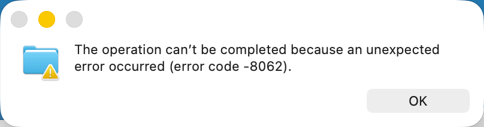
#9. Problem moving files to the MU1 Music folder from MAC: “The operation can’t be completed because an unexpected error occurred (error code -8062).”
This will be resolved in a future update but it can also be resolved via support mode, therefore you should contact us via the support form.